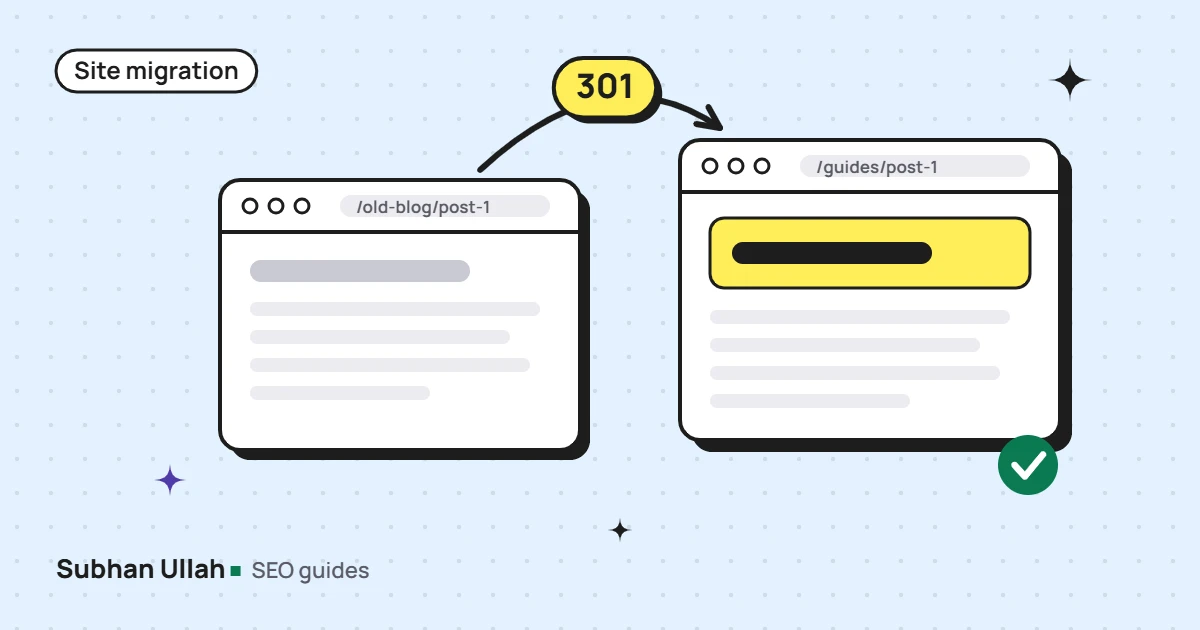
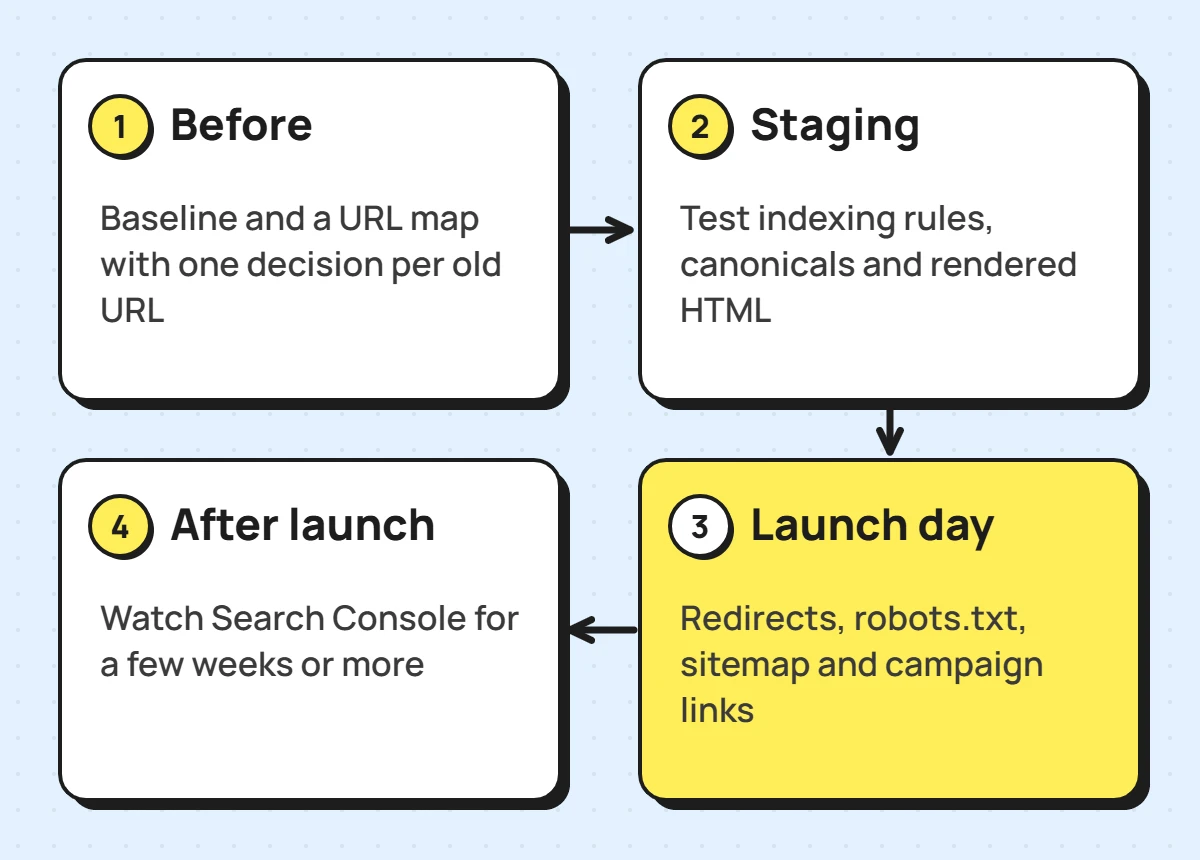
An SEO migration checklist is the list of checks that stops a redesign, platform change or domain move from losing your search traffic. The short version: record a baseline before anything changes, give every old URL one decision (keep, redirect or remove), test the new site as Google will see it, verify redirects on launch day, then watch Search Console for at least a few weeks. The rest of this guide explains each step, and the mistakes I have actually seen break migrations.
Most published checklists list the same twenty items. The items are right, but migrations rarely fail on the obvious ones. They fail on a redirect that drops tracking parameters, a page that 301s away from itself, or a forgotten copy of the old site that stays online. Those are in here too.
What counts as an SEO migration
Any change that alters the URLs, the content Google can see, or the way pages are served. That includes a redesign, a move to a new CMS (for example WordPress to Shopify, or WordPress to a JavaScript framework), a domain change, a move to HTTPS, and a change to your URL structure. Google covers the mechanics in its guide to site moves with URL changes. If you only change hosting and every URL stays the same, the risk is much lower, but the launch-day checks below still apply.
Before the migration: the baseline
You cannot tell whether a migration worked without knowing where you started. Capture this before anything changes:
- A full crawl of the current site, saved, so you can compare URLs, titles, canonicals and status codes later
- The pages that earn search traffic: export landing pages with clicks and impressions from Search Console for the longest period available
- The URLs other sites link to, from Search Console’s Links report and any backlink tool you use
- Every indexed URL type that is easy to forget: PDFs, images, old blog posts, podcast and case study pages, tag and author archives
- Current titles, meta descriptions and H1s for the important templates
- How leads are tracked today, and whether that tracking is actually right
That last point is not a detour. On one B2B site I worked on, analytics counted every visit to the contact page as a lead. If you migrate with broken tracking you carry the wrong numbers into the new site and cannot measure the move at all. Fix the definition of a lead first, then take the baseline.
Build the URL map: one decision per old URL
The URL map is the heart of the migration. Every old URL gets exactly one of three outcomes, decided on purpose:
| The page still exists at the same address | Keep it. Check it still returns 200 with the same main content. |
| The content moved or has a close equivalent | Permanent redirect (301 or 308) straight to that page, not to the homepage. |
| The content is gone and nothing replaces it | Return 404 or 410. Google treats all 4xx errors the same way, so pick one and be consistent. |
A real example: 235 redirects
On a healthcare technology site that had moved from WordPress to a JavaScript app, the old articles, podcasts and case studies had simply not come across. The fix was to restore what still mattered and map the rest: 235 redirects and more than 50 “gone” responses, prepared for the edge server that sat in front of the app. Sending all of that to the homepage would have been faster and would have thrown the old pages’ value away. Google is explicit that many URLs redirected to one unrelated page is a mistake.
Two rules that keep the map clean
- No chains. If page A already redirects to B and B now moves to C, point A straight at C.
- Publish before you redirect. On that same site, adding a redirect for a URL before its new page was published made the URL redirect away from itself. Always publish the destination first, then switch the redirect on.
Test the new site the way Google will see it
Staging checks catch problems while they are still cheap. Work through these before launch:
- Indexing rules: staging should be blocked from search, and you need a written plan for removing that block on launch day
- Canonicals point to the new URLs, not the old ones or the staging domain
- Internal links point directly at new URLs instead of relying on redirects
- Rendered content: on JavaScript sites, check the rendered HTML in the URL Inspection tool, not just the page source
- Titles and headings on every template, especially if the new CMS builds titles differently
- Structured data, hreflang and tracking tags are present on the new templates
- Forms submit and are tracked, tested with a real submission
JavaScript sites and noindex
JavaScript sites need extra care with indexing rules. Google renders JavaScript before indexing, but if the original HTML carries a noindex tag it may not render the page at all, so using JavaScript to remove a noindex is unreliable. On the JavaScript app above, I set the admin, draft and campaign routes to noindex and confirmed each one in the rendered page rather than trusting the source code.
Titles and headings
Titles are worth a separate pass. A template change can quietly make hundreds of titles longer. On that site I rewrote titles on 96 pages and cut the number of titles truncated in search results from 59 to 12.
Launch day checklist
- Switch the redirects on and test the full URL map, not a sample. Every old URL should return one 301 or 308 to the right page, or a 404/410 where that was the decision.
- Remove the staging noindex and check robots.txt on the live domain.
- Check every version of the domain (http and https, www and non-www) lands on the one live version in a single hop.
- Submit the new XML sitemap in Search Console and remove the old one.
- For a domain change, submit Change of Address in Search Console. It is not needed for HTTPS, www or path changes.
- Test campaign links and forms end to end, then clear caches and test again.
- Look for any old copy of the site that is still online: staging, preview or temporary hosting addresses.
Where tracking quietly breaks
Step 6 is where tracking quietly breaks. Before an email campaign went out on the healthcare technology site, I tested its four links and found that one old address redirected to a new page and stripped the UTM tags on the way. Analytics would have recorded the visits with no campaign at all. The fix was simply to link to the final URL. A redirect can be perfectly correct for SEO and still break measurement.
After launch: what to watch and for how long
Google says it can take “a few weeks or more” for new URLs to replace old ones on a medium-sized site, and longer on a large one. Plan to watch closely for the first few weeks, then keep checking until indexing and traffic settle.
- Page indexing report: “Page with redirect” on old URLs is expected. Rising “Not found”, “Soft 404” or “Duplicate without user-selected canonical” counts are not.
- Soft 404s: pages that return 200 but look empty or like an error. On one site I audited 207 of them after a move.
- Landing pages from your baseline: compare clicks and positions page by page, not just site-wide totals
- Server logs or crawl stats for unexpected errors as Googlebot recrawls
- Leads and conversions in analytics, using the definition you fixed before the move
Keep redirects in place for at least a year. Google’s guidance says so, and in practice there is rarely a good reason to remove them sooner.
Two problems from migrating this site
This site moved from a single-page app on another host to WordPress in October 2026. Two things went wrong, and neither is on most checklists:
1. The temporary address kept serving a full copy of the site
The host’s preview domain from the build stayed live, with its own canonical tags. A host-level redirect would normally fix that, but the host’s preview proxy rewrote the redirect target back to the preview address, so it looped. I rolled it back within minutes and instead sent a “noindex” header on the preview hostname only, then tested that the live pages stayed indexable, including from cache.
2. A plugin change took the XML sitemap offline
Turning on a redirect module reset the rewrite rules, and the sitemap started returning 404. Re-saving the permalink settings, with nothing changed, restored it. Now I re-test the sitemap after any plugin or settings change during a migration.
The checklist at a glance
| Stage | Check | Done when |
|---|---|---|
| Before | Crawl, landing pages, linked URLs, tracking | Saved baseline you can compare against |
| Before | URL map | Every old URL has keep, redirect or remove |
| Staging | Indexing rules, canonicals, internal links, rendered HTML, titles, forms | All templates pass |
| Launch | Redirects, robots.txt, domain variants, sitemap, campaign links, old copies | Full URL map tested, single-hop redirects |
| After | Page indexing, soft 404s, baseline pages, leads | Indexing and traffic settled; redirects kept a year |
If you are planning a redesign or platform change and want a second pair of eyes on the URL map or the launch, that is exactly what my SEO migration service covers. You can also read how this worked on a real site in the healthcare technology migration case study, or start with a technical SEO audit of the current site. The technical SEO audit checklist covers what that audit looks at.
Frequently asked questions
Do 301 redirects lose ranking value?
Google says permanent redirects do not lose PageRank. Rankings can still move while Google recrawls and reprocesses the new URLs, which is why you watch the baseline pages for the first few weeks.
Should I move the whole site at once or in sections?
Google suggests small and medium sites move everything at once, and large sites can move in sections. Either way, change one thing at a time where you can: a new domain and a new URL structure in the same week makes problems much harder to trace.
When do I need Search Console’s Change of Address tool?
Only when the domain or subdomain changes. Moving to HTTPS, switching between www and non-www, or changing paths on the same domain do not need it.